Provider guide
Running your first program,
start to finish.
About ten minutes to set up, five minutes on the day, and almost nothing after that. The four weeks run themselves. This guide covers each step, what your participants and your client see, and what to do if something looks wrong.
1. Before your first event
Set up your practice.
The first time you sign in, a short setup walks you through six steps. You can stop at any point and it picks up where you left off.
- Your practice. The name participants see on the sign-in page, in email footers and on your client's dashboard.
- Email identity. The sender name on every email, and the address replies go to. All mail leaves from one shared ActionKeeper address so it reaches inboxes reliably; your name is on it, and replies come to you.
- Program defaults. The settings each new program starts from.
- Your AI coach. What the coach is called and how it introduces itself. It works from what each person wrote that week, grounded in behavioral and performance psychology.
- Try it yourself. A private test program with every week unlocked, so you can be a participant for ten minutes. It counts against nothing and deletes in one click.
- Ready to go. A short checklist.
2. For each organization
Add a client.
A client is the company that booked you. Choose + New client in your console. Only the name is required.
- Client contact. Usually the meeting planner, HR lead or sponsor. They get a sign-in link and their own dashboard. After you save, the client's page tells you whether they were added, and you can add more people there.
- Privacy. Leave it on Aggregate only. Your client sees the group, not the person, which is what keeps the check-ins honest.
- Check-in list, by name. Off by default. Switch it on from the client's page if your client wants to see who has checked in each week. They see a tick or a cross per person, never what anybody wrote.
Sending your client something to read first? Point them to the page for meeting planners.
3. Before you go on stage
Create the cohort.
A cohort is one group from one event. Create it before the day, because creating it is what makes the QR code. Choose + New cohort, then the program, the client, the event name and a cohort name (for example, “Northwind, Spring 2026”). A participant limit and an access code are optional.
Every program runs for four weeks. That is not a setting.
4. At the event
In the room.
The last few minutes of your session are when people most want to act, so that is when they sign up. There are three ways in:
- The QR code, on your closing slide.
- The registration link, for anyone joining online.
- The access code, read aloud. It is a shortcut, not a password.
Each person writes their commitment and a first action, on their own phone, in about three minutes. You can also invite people by name beforehand: paste their email addresses, or a list your client sent you, on the cohort page.
Before you go on stage, scan your own code and register. It takes a minute and proves everything works from the room you are standing in.

5. After the event
The four weeks run themselves.
| When | What happens |
|---|---|
| At the event | They register, and a welcome email goes out straight away. |
| Two days later | Week 1's check-in opens. |
| The next Tuesday | The week 1 email: their commitment, and four questions that take about five minutes. |
| That Thursday | A reminder, only to people who have not checked in. |
| Weeks 2 to 4 | The same, each Tuesday and Thursday. |
| After week 4 | A final summary for each participant, and your client's report is complete. |
Why Tuesday: Monday is for clearing the inbox, and by Friday people have left for the weekend. The four questions ask what they did, what helped or got in the way, what resulted and what they learned, and what is next. The AI coach then replies and helps them settle on one specific next action.
6. Whenever you like
Your console.
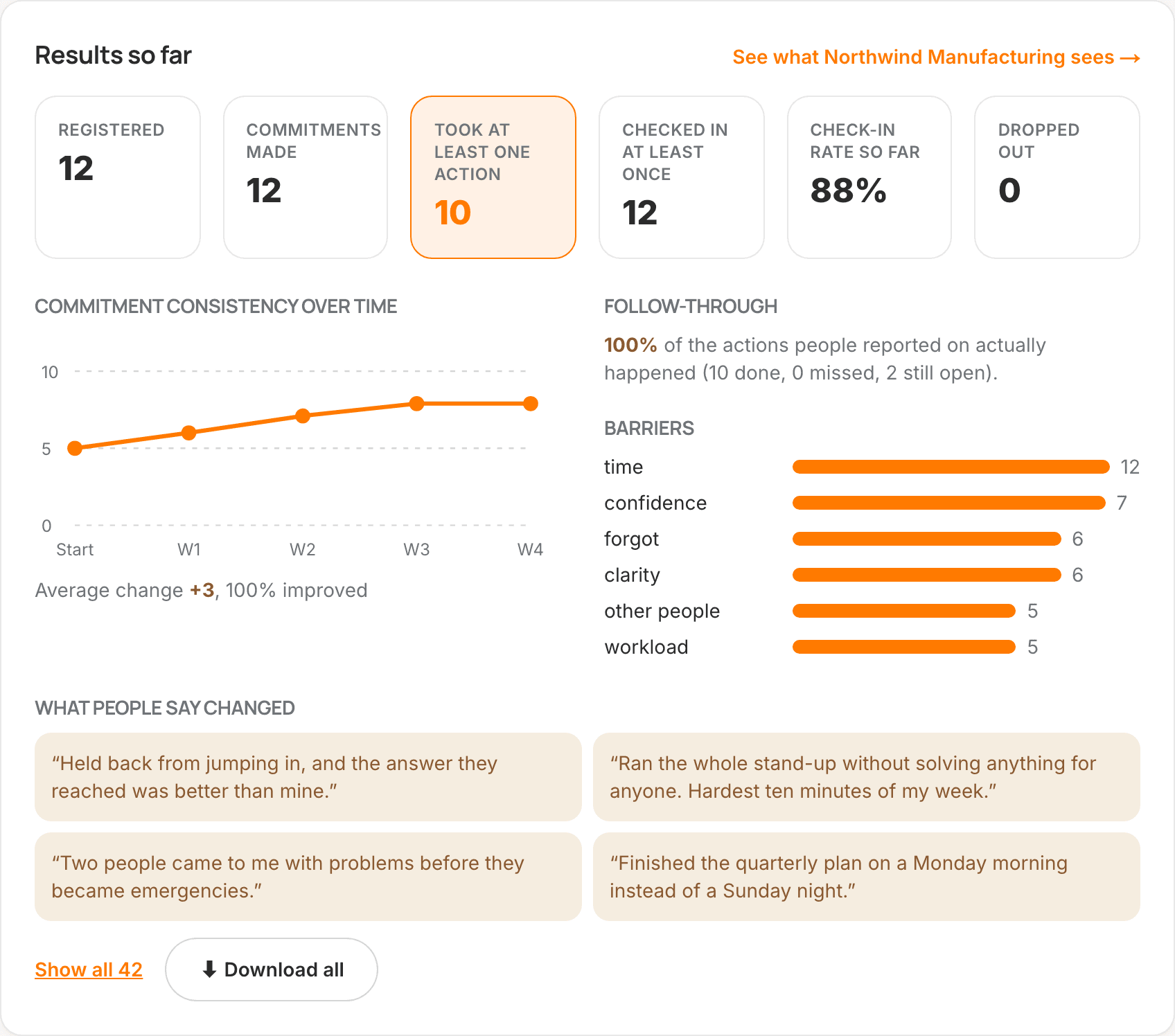
- Your practice at a glance. The number to watch is took at least one action.
- Participants not getting your emails. If an email bounces (almost always a typo at registration), that person is listed at the top of your console and marked on the cohort page, and you get one email about it. Use Report to ActionKeeper and we will correct the address.
- Each cohort. Who registered, who has checked in each week, and the results so far. See what your client sees shows you their dashboard exactly as they see it.
- Programs. The weekly questions, the 0 to 10 measure and what a commitment is called. Duplicate a program to make a variant.
- Coaching quality. How often the coach led to a concrete action, without showing anybody's conversation.
7. Your client
What your client sees.
Their dashboard shows how many people enrolled and took action, how scores moved from the day of the event, the commitments people made, the barriers that came up most often, and an executive summary at the end. In a group of fewer than five, they see counts and scores but no written comments.
What people write in their weekly check-ins, and their conversations with the coach, are not shown to your client or to you. That is why people write honestly, and honest answers are what make the report worth reading.
8. At the end
Finishing a program.
On the cohort page, choose Mark this program finished. The emails stop, nobody new can register, and the places free up on your plan. You and your client keep the dashboard, the report and your export. You can reopen it if you need to.
Getting help
We're here, and we answer.
Send a request from Support in your console. It comes straight to us, with your account details attached, so you don't need to explain who you are. We reply within one business day, usually sooner.
If a participant's email has bounced, use Report to ActionKeeper next to their name instead: it fills in the details for you.
Can't sign in? Email info@actionkeeper.app.
If something looks wrong
Questions providers ask.
Someone registered, but nothing has happened.
That is expected. Week 1 opens two days after they register, and its email arrives on the Tuesday after that. They get a welcome email straight away, and their dashboard is there from the start.
A participant says they never got an email.
Look at the top of your console first. If their email bounced, they are listed there, usually because of a typo at registration. If nothing is listed, the email was delivered: ask them to search their inbox, spam and quarantine folders for your name. Company spam filters are the usual reason. Their IT team can let through mail from actionkeeper.app.
How do I correct a participant's email address?
Use Report to ActionKeeper next to their name in your console, and include the right address if you have it. We correct it, usually the same day. Their next weekly email reaches them, and they can complete any week they missed from their dashboard.
A participant says their sign-in link has expired.
Links are single-use and last 24 hours. The expired page sends a fresh one with a button. Every email also carries a sign-in code to type in on the sign-in page, for when a company email scanner has used the link before the person could.
Someone wants to stop getting emails.
Every email has an unsubscribe link, and the Thursday reminder can be turned off on its own. Stopping email does not remove them from the program: they can still sign in and check in.
Can my client see what each person wrote?
No. Your client sees totals, themes and the commitments people made, without names. Weekly reflections and conversations with the AI coach are not shown to anybody, including you. If you switch it on for that client, they can also see who has checked in each week, by name: whether each person did it, never what they wrote.
Can I change a program's questions while a cohort is running?
Change wording between cohorts, not during one. Answers are kept against the question as it was asked, so changing it mid-program splits a person's earlier weeks from their later ones.
How do I get help?
Use Support in your console. It comes straight to us, and we reply within one business day, usually sooner. If you cannot sign in, email info@actionkeeper.app.